AR Drawing - Paint & Sketch
LOGICLABS LIMITEDArt & Design
4.2611.00 Reviews
- Version
- 1.7.0
- Installs
- 1.00M
- Age Rating
- Everyone
Screenshots
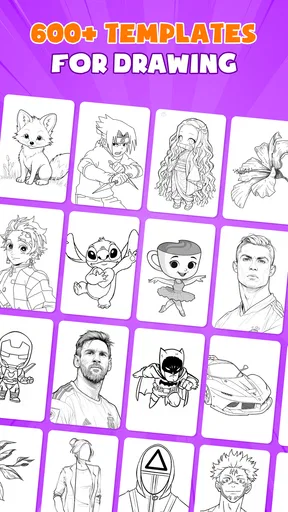
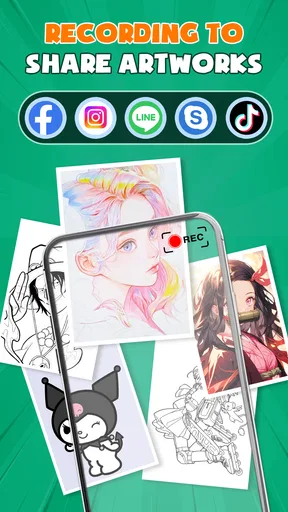
Our Review of AR Drawing - Paint & Sketch
 Analysis by Appyee
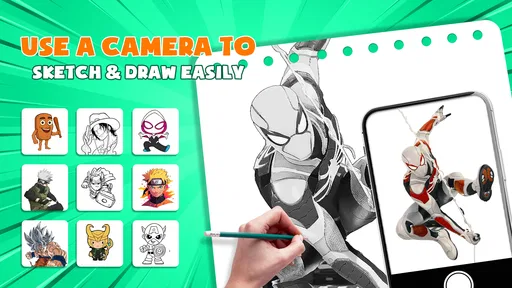
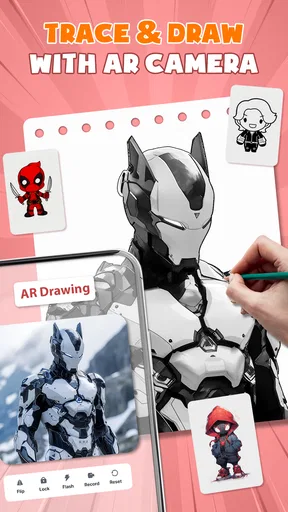
I found AR Drawing - Paint & Sketch most useful when I wanted to turn a blank page into a guided drawing session without committing to a full desktop art program. It is a free art and design app from LOGICLABS LIMITED, built around the idea of using augmented reality to place a drawing reference into the real world and sketch over it. That makes the experience feel different from opening a normal canvas and working entirely from imagination.
My first impression was that the app is aimed at lowering the barrier to drawing. You do not need to begin by understanding layers, brushes, perspective grids, or a complicated professional interface. Instead, the central appeal is visual guidance: position a reference, look through the phone, and use the displayed image as a guide while drawing on paper. For someone who has always said, “I can copy a picture, but I cannot draw,” that approach is immediately approachable.
The app sits in the Art & Design category and has an Everyone content rating, so its audience is broad. It has reached over a million installs and holds a 4.2 average from around eighteen thousand ratings, which suggests that the basic concept is connecting with many casual users. I would not mistake it for a complete digital illustration studio, though. Its strongest role is as a practical bridge between a reference image and a physical sketch.
How the AR drawing workflow feels in everyday use
I find the workflow easiest to judge by how well the phone, paper, and reference work together, rather than by expecting a conventional digital canvas. In the sections ahead, I’ll look at the practical setup and the choices that help keep a sketch session under my control, including when a simpler reference method may be more comfortable.
Starting quickly without a professional learning curve
The main advantage is the short distance between opening the app and beginning a drawing. In a conventional drawing app, I might spend time choosing a canvas size, selecting a brush, adjusting opacity, and deciding whether I want a pencil, ink, or paint effect. Here, the important preparation is more physical: finding a flat surface, positioning the phone, placing paper where I can draw comfortably, and choosing a reference that is suitable for the exercise.
That difference matters for speed. The app can feel quick when I already know what I want to sketch, because the reference becomes the starting point instead of a blank canvas. It is especially convenient for short practice sessions, such as drawing a character during a break, preparing a simple illustration for a notebook, or helping a child copy basic shapes. The experience is less about producing a polished digital file and more about getting my hand moving.
I also found that the quality of the result depends heavily on setup rather than on artistic talent alone. A phone that is slightly too high, too low, or angled away from the paper can make the projected guide uncomfortable to follow. I get better results when I place the paper first, keep the device stable, and make small adjustments before starting the outline. This is one of the most important practical lessons: good positioning improves the drawing more than rushing into the first line.
Why anime references are both helpful and demanding
The anime focus gives the app a clear personality. Large eyes, expressive hair, recognizable silhouettes, and stylized faces are more motivating to practice than random geometric exercises for many users. I can choose a favorite type of character study and work on one part at a time instead of trying to invent an entire composition.
At the same time, anime art can expose weaknesses quickly. Hair strands, facial symmetry, hands, and clothing folds require more than tracing a visible contour. The AR guide can help me place the major shapes, but it does not automatically teach why those shapes work. If I copy only the outside lines, the result may look flat or stiff. I get more value when I use the guide for proportion and then add my own construction lines, shadows, and expression choices.
That makes the app better for guided practice than for instant mastery. A beginner can use it to understand where the eyes sit, how wide a head should be, or how a pose occupies the page. A more experienced artist may use it as a quick reference tool, but will probably want a separate sketching environment for anatomy studies, layer management, and detailed finishing.
A realistic use case: a short evening drawing session
Imagine coming home with twenty minutes available and wanting to draw rather than scroll through social media. I would choose a simple anime portrait, put a sheet of paper on a desk, and use the phone to align the reference. I would begin with the head shape and facial placement, pause to check the proportions, and then add hair and clothing from memory where possible. After the guide has done its job, I would move toward independent lines instead of tracing every detail.
This workflow makes the app more valuable as a learning aid. It gives me a controlled starting point, but I still have decisions to make. I can simplify the hair, change the eyes, exaggerate the expression, or alter the outfit. The result becomes less like a mechanical copy and more like a personal variation. For a young artist, that can be a useful way to move gradually from tracing toward observation and then toward original drawing.
What happens during longer or heavier sessions
Short sessions are where the concept feels most natural. Longer sessions introduce more friction because the phone must remain in a useful position while I draw. My hand can bump the table, the paper can shift, or the viewing angle can become tiring. These are not necessarily failures of the app; they are consequences of combining a camera-based guide with a physical drawing surface.
For heavier use, I would prepare the workspace before opening the reference. A stable stand or improvised support is more useful than repeatedly correcting the phone by hand. I would also avoid starting with an extremely detailed image. Fine details are difficult to follow if the guide moves even slightly, and they can make the session feel slower than it needs to be. Beginning with a clean silhouette and adding detail after checking alignment produces a calmer workflow.
Resource demands are also tied to the AR presentation. Camera-based drawing naturally asks more from a phone than a simple static notes app, and the experience can be less comfortable on a device with a small screen or limited physical stability. I would not choose this as my main tool for a long professional commission. It is better suited to focused practice, casual projects, teaching demonstrations, and quick visual experiments.
Stability, interruptions, and recovering from a disrupted session
Reliability here is not only about whether the app opens. The real question is whether I can maintain a consistent reference while drawing. Any interruption that changes the camera view, shifts the phone, or forces me to restart the setup can break concentration. That is why I treat the first few minutes as alignment time rather than wasted time.
A sensible recovery routine makes a noticeable difference. Before drawing details, I mark the broad placement of the head or main subject lightly on paper. If the view changes later, those marks give me an anchor for realigning the reference. I also save or photograph my progress outside the drawing session when I reach an important stage, because a physical sketch should not depend entirely on keeping one camera position unchanged.
I would describe the app as most dependable when the environment is controlled. A desk, steady lighting, a clean sheet, and a device that can remain still create a much smoother experience than drawing on a lap or in a crowded room. The app cannot remove those physical variables. Users expecting the effortless stability of a conventional digital canvas may find the AR method more delicate than anticipated.
Device compatibility and practical constraints
The current version is 1.6.9, and the app supports Android 7.0 or later. That gives it a wide potential reach, including many older phones, but compatibility on paper does not guarantee an equally comfortable experience on every device. Camera quality, screen size, processing ability, battery condition, and the physical shape of the phone all affect how pleasant AR drawing feels.
A larger, brighter display is easier to follow while keeping the drawing hand in a natural position. A phone with a weak battery may be less suitable for extended sessions, especially when the camera view remains active. Older hardware may also make the experience feel less immediate than a newer device, although I would avoid treating the operating-system requirement as a promise of identical performance across all phones.
There is another constraint that is easy to overlook: the app is designed around looking through the device while drawing on something else. That means it is not ideal for people who want to draw directly with a finger or stylus on the screen. If your preferred workflow is digital painting, a conventional canvas app will give you better control, cleaner editing, and less dependence on physical alignment.
How it compares with ordinary drawing alternatives
Compared with a standard sketching app, this tool offers a more physical and beginner-friendly starting point. A normal canvas gives me freedom to zoom, undo, layer, recolor, and refine without worrying about the phone moving. It is the better choice when I want a finished digital illustration or a repeatable professional workflow.
Compared with copying from a printed picture or a second screen, the AR approach can make placement easier because the guide is viewed in relation to the paper. I do not have to keep shifting my eyes between a reference and a separate drawing area in quite the same way. However, the trade-off is that the phone itself becomes part of the drawing setup. A printed reference is simpler, more stable, and often more comfortable for long sessions.
Compared with a video tutorial, the app gives less explanation but more direct visual assistance. A tutorial can teach the reasoning behind a face, pose, or hairstyle, while AR guidance helps me place the image in front of me. I see the best results when I combine the two: use instruction to understand structure, then use the AR reference for a short, hands-on exercise.
Who should use it and who should skip it
I would recommend it to beginners who feel blocked by a blank page, anime fans who want a low-pressure way to practice, parents looking for a creative activity, and casual artists who enjoy moving between digital references and physical paper. It is also useful for someone who wants to test whether drawing is enjoyable before investing in a more complex art setup.
I would be more cautious about recommending it to professional illustrators, users who need precise digital editing, and artists who dislike tracing or guided work. The app can support learning, but it should not replace understanding proportion, gesture, anatomy, or composition. If the goal is a layered illustration ready for further digital production, another category of tool will be more appropriate.
It is free to use, which makes experimentation easier, and the Everyone rating keeps the app accessible for a broad audience. Still, free does not mean frictionless. The real investment is attention: setting up the phone, keeping the reference aligned, and deciding when to stop following the guide and make the drawing your own.
My performance verdict
After looking at the app through the lens of speed, heavy use, stability, and device limitations, I see it as a focused drawing companion rather than a full art workstation. It can feel fast at the beginning of a small project because it removes the intimidation of an empty page. It becomes less efficient when the session grows long, the reference is highly detailed, or the phone cannot stay comfortably fixed.
The strongest results come from treating AR as a starting framework. I use it to establish proportions, then reduce my dependence on the overlay by adding construction, shading, and personal changes. That approach avoids one of the main weaknesses of guided drawing: producing a copy without learning how to recreate the subject independently.
LOGICLABS LIMITED has made a clear, approachable art app for people who want a visual push rather than a complicated toolbox. The 4.2 average and large install base fit my impression that the concept is easy to understand and enjoyable when the workspace is prepared properly. I would not install it expecting professional illustration features or perfect convenience on every phone, but I would suggest it to a friend who wants to make anime sketches more approachable.
My final recommendation is simple: try it if your biggest obstacle is getting started. Use a stable surface, begin with uncomplicated references, check alignment before adding detail, and treat the guide as training wheels rather than a permanent substitute for drawing knowledge. With those expectations, AR Drawing - Paint & Sketch offers a distinctive and accessible way to turn a phone, a sheet of paper, and a little spare time into a practical art session.
Privacy and Permissions
See what permissions an app requests and how it handles your data.
- Photos/Media/Files
- read the contents of your USB storage, modify or delete the contents of your USB storage
- Storage
- read the contents of your USB storage, modify or delete the contents of your USB storage
- Camera
- take pictures and videos
- Microphone
- record audio
- Wi-Fi connection information
- view Wi-Fi connections
- Other
- view network connections, full network access, control vibration, prevent device from sleeping, Google Play license check, read Google service configuration
Verdict
Strengths of AR Drawing - Paint & Sketch
- Guided overlays make it easier for beginners to copy images.
- Useful for practicing proportions, outlines, and basic sketching skills.
- Includes a variety of reference images and drawing categories.
- Camera-based tracing works well in suitable lighting conditions.
- Simple interface lets users start a drawing quickly.
Limitations of AR Drawing - Paint & Sketch
- Tracing requires a stable phone stand or tripod for better accuracy.
- Some tools and image packs may be locked behind a subscription.
- Camera alignment can shift if the device is moved during drawing.
- The screen may be difficult to view outdoors in bright sunlight.
- Results depend heavily on the quality of the selected reference image.
Other Releases by LOGICLABS LIMITED
View All
Craft Explore: Block Builder
Simulation3.6

Draw Anime - AR Drawing Sketch
Art & Design4.4
Similar Picks in This Category
View All
Canva: AI Photo & Video Editor
Canva4.8

PENUP – Drawing-sharing SNS
Samsung Electronics Co., Ltd.4.5

Crafto
Kutumb App4.6

Sketchbook
Sketchbook4.1

ibis Paint X
ibis inc.4.5

Adobe Express: AI Photo, Video
Adobe4.6
Frequently Asked Questions
What is AR Drawing - Paint & Sketch, and how does it work?
AR Drawing - Paint & Sketch is a creative drawing app that uses augmented reality to help you trace images onto paper or another physical surface. After choosing or importing a reference, the app displays the artwork through your phone’s camera view, allowing you to follow the visible lines with a pencil. It is designed for beginners, hobby artists, and anyone who wants guided drawing practice.
Do I need any special equipment to use AR Drawing - Paint & Sketch?
You generally only need a compatible Android or iOS device, a sheet of paper, drawing materials, and a stable surface. A phone stand or tripod is strongly recommended because keeping the camera fixed makes tracing much easier. The app may also require camera permission, and good lighting is important so the reference remains clear while you draw.
Can I use my own photos or drawings in the app?
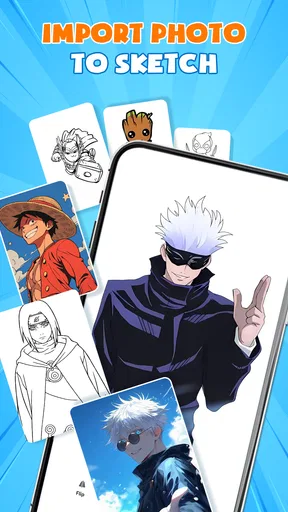
Many versions of AR Drawing - Paint & Sketch allow users to select artwork from built-in categories and, depending on the available features, import an image from the device gallery. This is useful for practicing with personal references, portraits, objects, or custom designs. Image-import options and supported formats can vary by version, so check the in-app tools before downloading.
Is AR Drawing - Paint & Sketch free to download and use?
The application may be available as a free download, but some features can be limited by advertisements, premium content, subscriptions, or in-app purchases. Free users may still access selected drawing templates and basic tools, while advanced collections or additional functionality could require payment. Review the store listing and purchase terms carefully before starting a trial or subscription.
Is AR Drawing - Paint & Sketch suitable for children and complete beginners?
The app is generally approachable for beginners because it provides a visual guide instead of requiring users to draw everything from memory. Children can enjoy tracing simple designs, although younger users may need help positioning the phone and handling permissions or advertisements. Parents should also review the app’s purchase settings and supervise any subscription prompts or external links.
